
Training AI On Your Personal Data
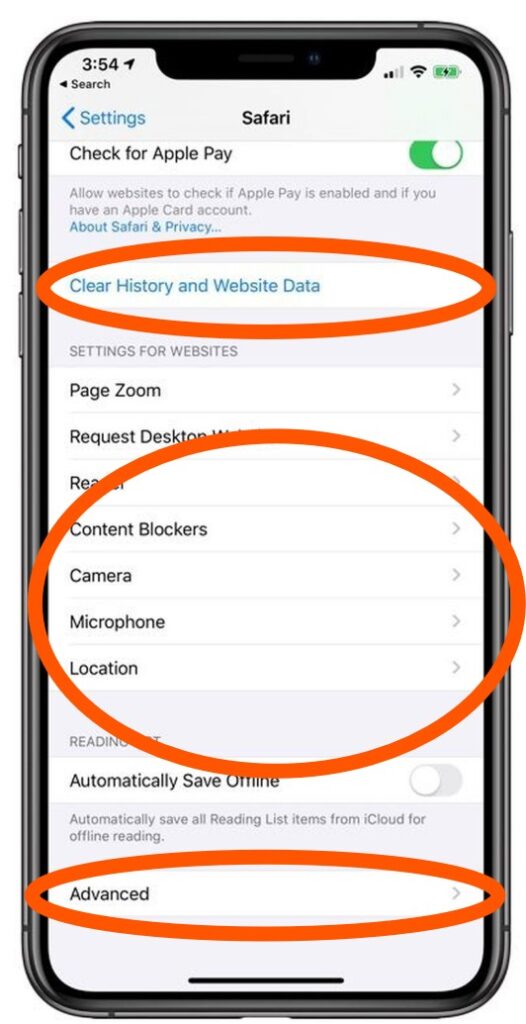
iPHONE USERS / SAFARI BROWSER SETTINGS & PRIVACY:
How much “convenience” you are willing to gain, to lose your privacy?
iPhone settings are a more consistent between versions and software updates, since all iPhones are made by one company – Apple. However, newer iPhone versions have added Artificial Intelligence applications that do not exist on older models. Unfortunately, in device iOS 15 and newer, there is not a universal button to stop Siri from “learning from your usage of the apps” overall, so you’ll need to repeat the below steps of this process for EVERY APP you would like to exclude from Siri personalization.
To Turn OFF Artificial Intelligence from “learning” your usage and other Tracking settings follow these steps:
SETTINGS:
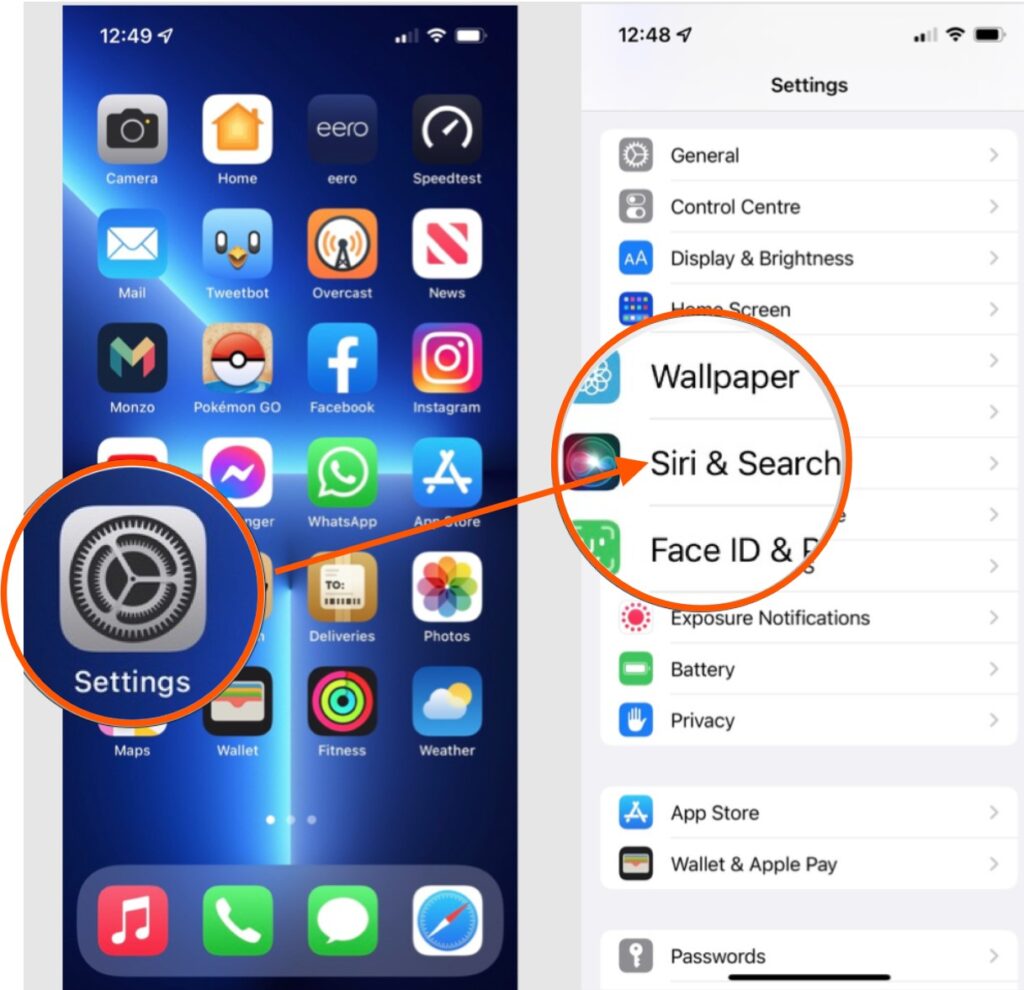
- Click on your device “Settings” icon on the desktop or Home Screen (or Search for “Settings”). The icon looks like an industrial wall fan, or silver speaker, and sometimes is clustered under “Utilities” folder, with your calculator icon, Safari browser icon, magnifier icon, Watch icon, and Compass icon. You may also have an individual “Settings” icon on your Home page/desktop.
- Look for the “Apps” name and icon in the menu list under “Settings“. My device is showing “Apps” at the very bottom of the list, but my friend’s iPhone shows “Applications“.
- Open this Application tab by clicking on it. You should see all of the Apps that are stored on your device.
- Then click on each Application to see whether you have “Apple Intelligence & Siri” showing in the list, and click on it.
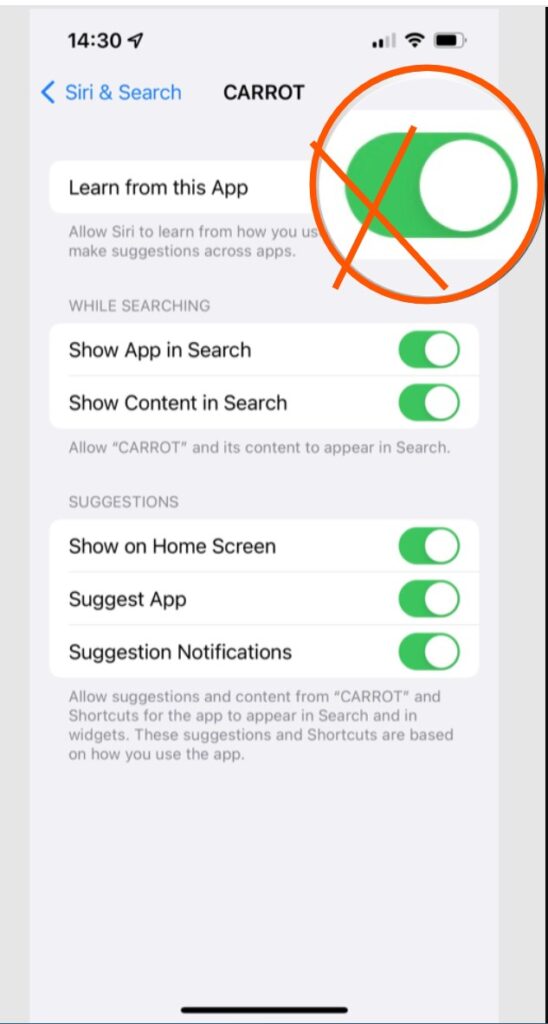
5. Decide whether or not you want to share everything you do (or where you go) while using this app with Artificial Intelligence (AI) to help Apple train it on YOUR data. “Learn from this App” means ALLOW (AI) TO LEARN from this APP and EVERYTHING YOU DO and SAY will be TRACKED… In other words, it is tracking your life and allowing AI to learn from your habits.
6. You can turn this OFF, or ON, by toggling the switch, depending upon your preferences. You can make this choice for each app installed on your device — allowing some, but not others, or not allowing any Apps to Learn from your actions.
7. Read carefully each selection and make the choice. The change will not affect your ability to use your phone.
PRIVACY & SECURITY:
After you have made these changes, go back (use the back arrow) to the “Settings” page and find “Privacy & Security” on your iPhone, and click on it.
- This also give you a list of your installed Apps, however, under Privacy and Security, you can check to see which apps have access and which permissions they have been given. Click each App to see how many other Apps have permissions to access the connecting App.
- For example, if you click the Location app, you will see how many of your installed applications have access to your location.
- Click on the Microphone app to see how many of your installed applications have access to your microphone.
- Then, do this same step for Contacts to see which applications have access to your list of contacts.
- You may be surprised at the number of applications that have access/permissions to listen to you, track your location, and steal your contacts, as well as other information you have stored on your phones! But, you can turn-it-OFF, or Limit the permissions.
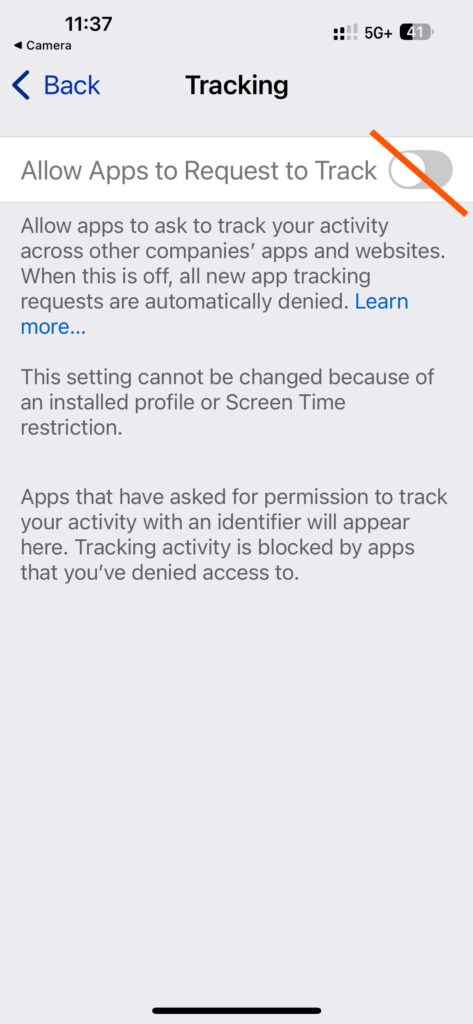
Another Example: TRACKING: iPhone offers an option to turn ON/OFF Tracking. Click on Tracking to read the description for more details, and decide what is right for you. (I highly suggest you turn this OFF) unless you don’t mind being Tracked. The change will not affect your ability to use your phone.
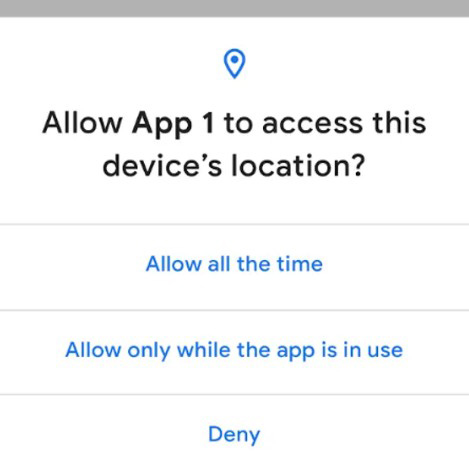
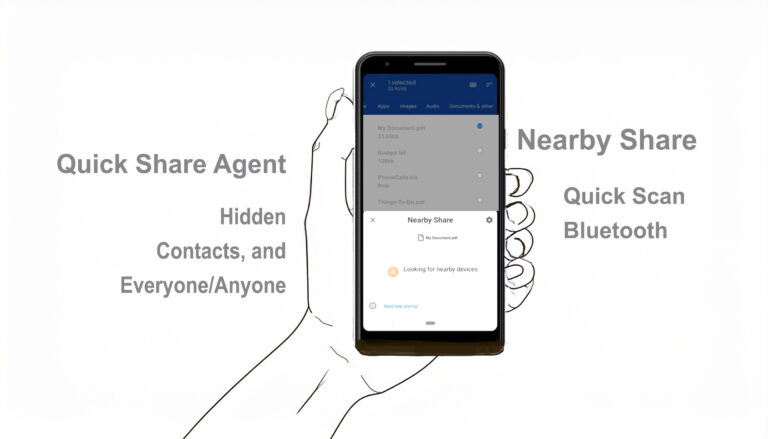
Android phones may also offer this option, or something similar, but it depends upon your device model, version, etc., as to where this setting can be found.
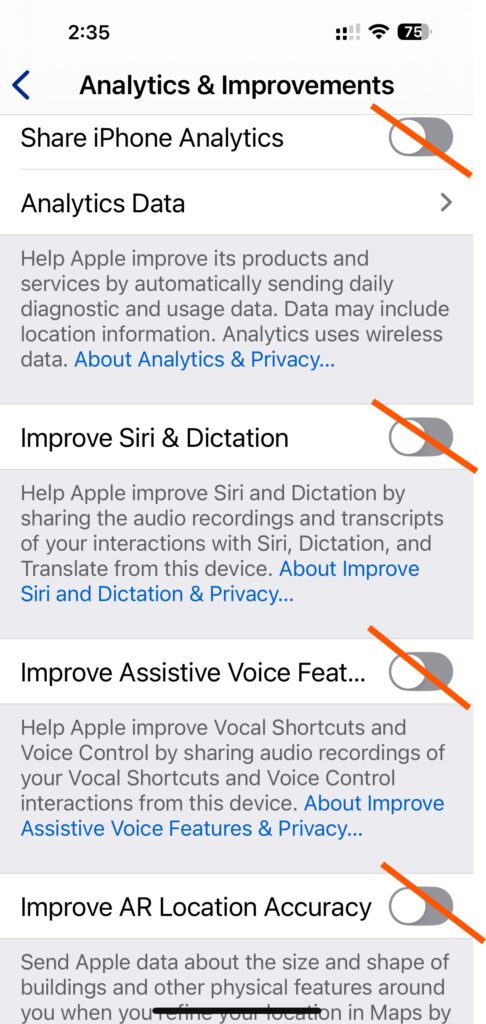
- Other settings you can change to reduce your risks of being trace is: ANALYTICS AND IMPROVEMENT:
- Help Apple “improve”… by sending (to Apple) your daily diagnostic and usage data. Data may include location information… wireless data….
- or by “sharing audio recordings and transcripts of your interactions with Siri, Dictation and Translate from this device”
- or by sharing recordings of your Vocal Shortcuts and Voice Control interactions from this device….
- or your “AR Location”….the size and shape of buildings and other physical features around you…. blah blah blah.
If you want to share this information, by all means do so. If not, just TURN IT OFF.
Other Examples to look at closely:
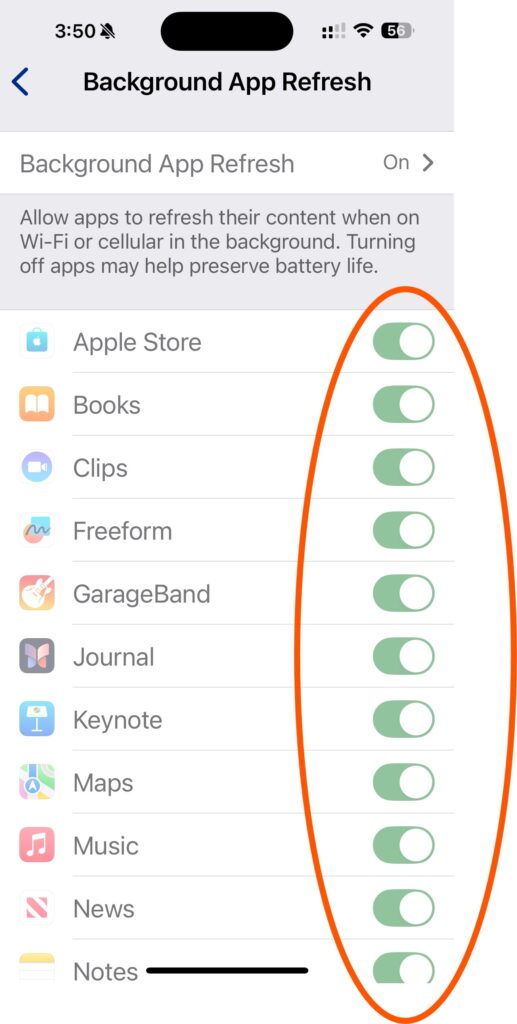
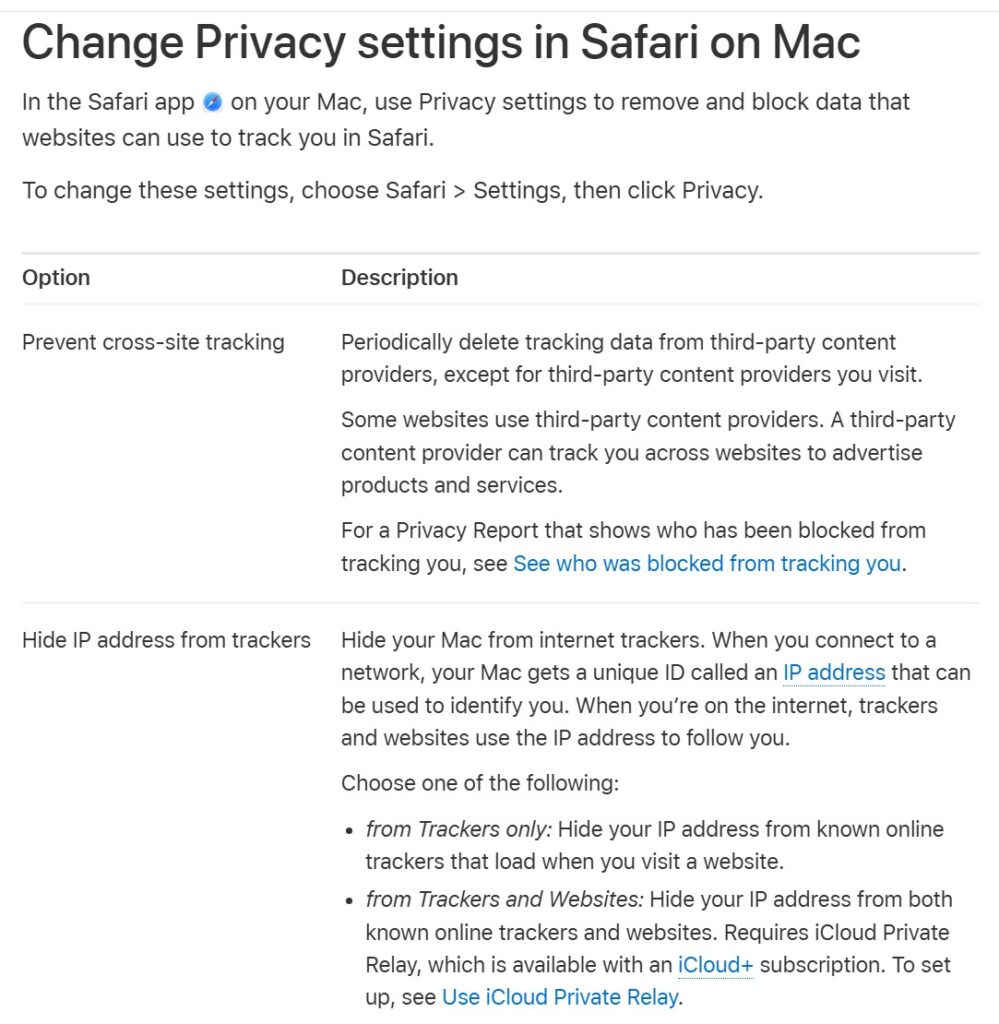
Background App Refresh, Apple Advertising, App Privacy Report, Apple Intelligence Report, Stolen Device Protection, Lockdown Mode, Safety Check, Motion & Fitness, and Research Sensor & Usage Data, Safari Settings, App Access and more.
Each of these apps have the ability to assist us and make our lives more “convenient.” However, there is a trade-off, since they give away and/or sell our personal data and other information gathered while using the app. It is your choice as to how much “convenience” you are willing to gain, to lose your privacy.