
How to Block and Clear Cookies
To stay as private as possible online, ALWAYS CLEAR YOUR BROWSER COOKIES after you have been shopping online, visiting financial sites, or anytime you do not want your browsing details tracked, shared, or sold, on your phone or computer. Clear your Browser details, then always close it down completely, to insure you have cleared the information. Click on the Orange Links in this article to review and understand the terms.
So, let’s look at the steps for the top-rated browser named Google Chrome:
Google Chrome: Delete Cookies, History, Cache first, then Block 3rd-Party Cookies by going to SETTINGS on your computer.
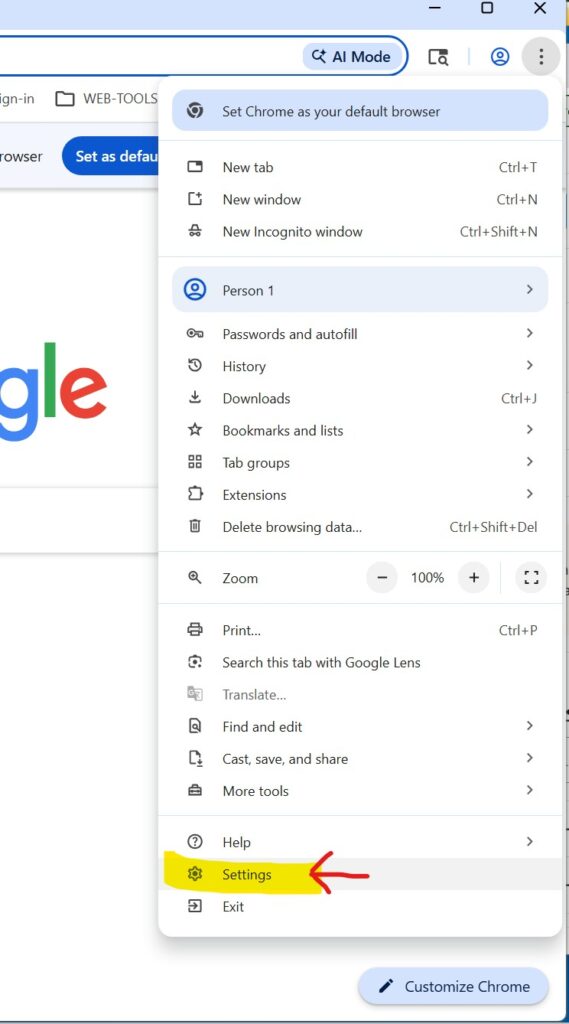
Open the Google Chrome browser and click on the 3 dots (ellipse) at the top right corner of your browser screen to open the options panel.
>> Then, follow the list of options all the way to the bottom for SETTINGS, and look at the those options.
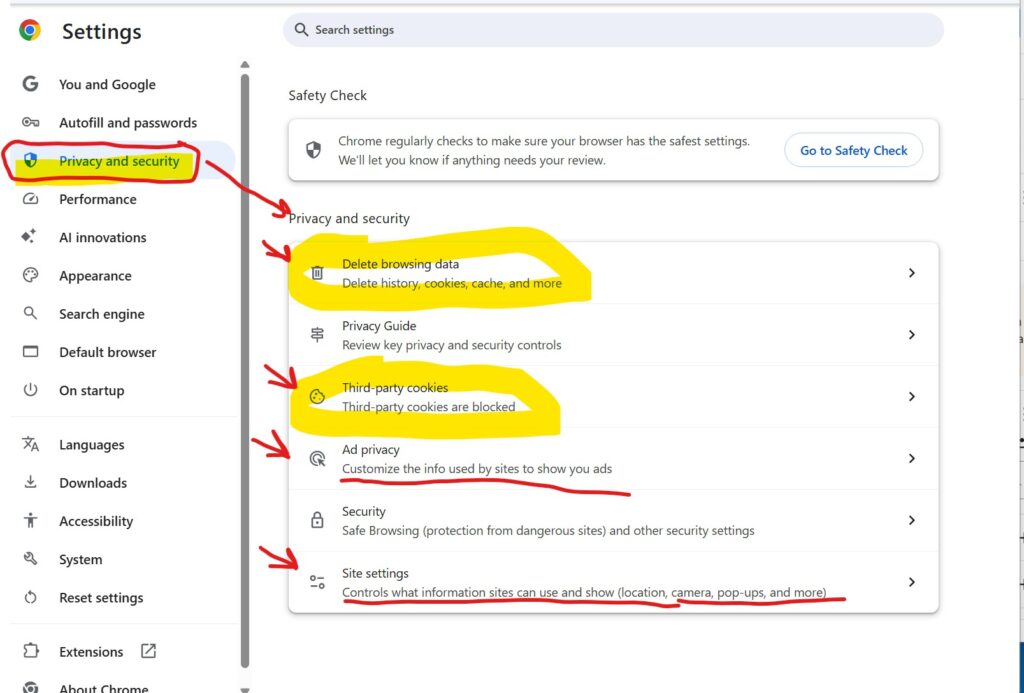
>> The first Setting we want to consider is PRIVACY AND SECURITY. (see graphic below)
NOTE: Click the arrow ” > “ on the right of each selection to open the settings for that selection.
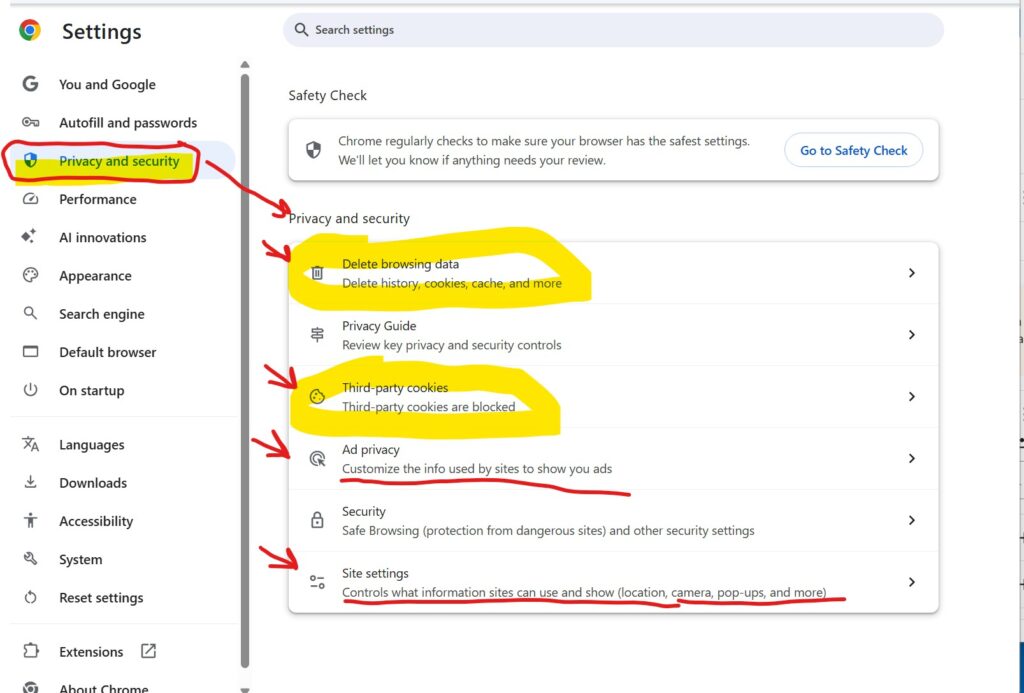
- Delete browsing data – History, Cookies, cache and more – so your browsing habits are removed from your browser.
- Third-party cookies settings – To block Cookies set by other companies besides the site you are visiting, or deny permissions to “share” or sell your browsing history to these 3rd-parties.
- Ad Privacy – to adjust settings regarding how ads are served to you.
- Site Settings – to adjust settings for what happens when you visit sites.
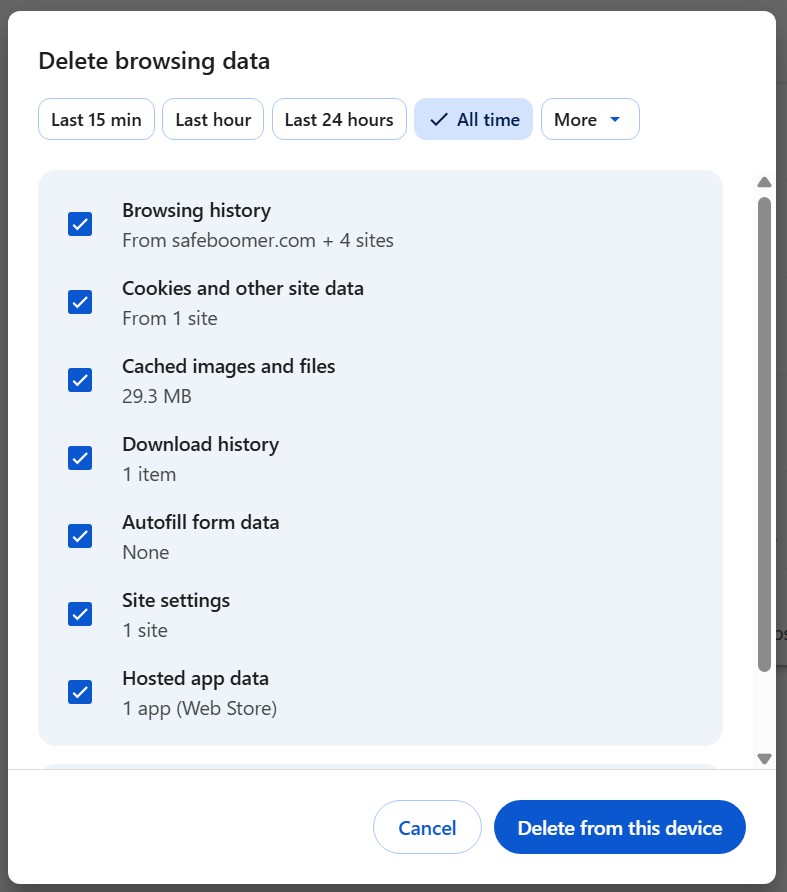
1. Delete browsing data – history, cookies, cache
2. Check the options you would like to clear from your browser (including Autofill form data, Site settings, and Hosted app data).
3. Set the timeline (15-min, Last Hour, ….. All Time) to delete data.
4. Click Delete button at the bottom, THEN CLOSE YOUR BROWSER COMPLETELY when you are finished with changes.
5. If you want to continue with the clean-up, you may scroll down below Hosted app data and see additional settings to review.
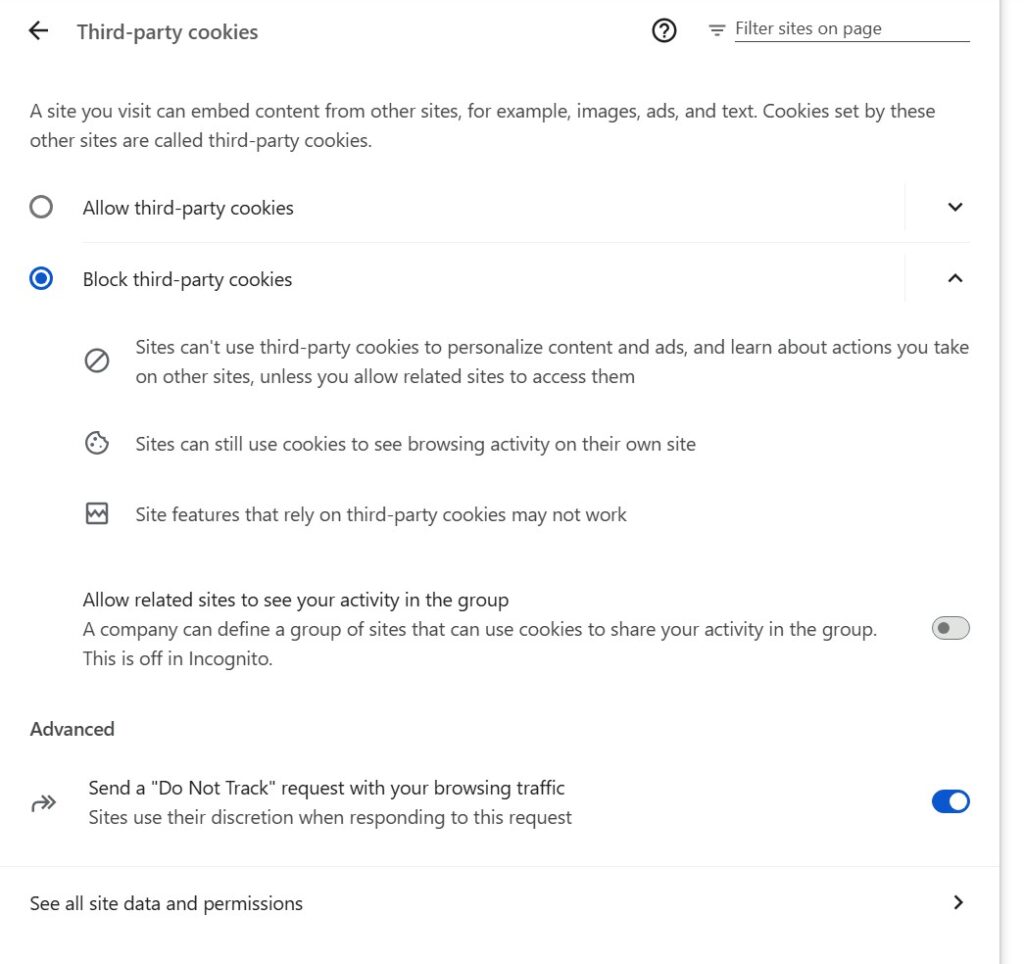
2. Third-party cookies settings – To block Cookies:
a.. Go Back to the Privacy & Security Settings.
b. Click on Block third-party cookies (read the description)
c. Then review the ADVANCED setting: Send a “Do Not Track” request with your browsing traffic. (Turn ON), for those sites who honor your requests to not track you.
The last two changes to review and determine how to set:
3. Ad Privacy – review
4. Site Settings – review
Click on the Orange Links in this article to review and understand the terms.
NOTE:
If you do not see the above settings on your computer or browser, you most likely have a different version of Chrome than the one used for this demonstration. However, you can Search for “SETTINGS” or “PRIVACY” on your device to see where these settings are located. You can also use the Search Bar to look for “Browser Content” or “Third-Party Cookies” or the term you are trying to find. Every device is different, but the changes you make in Settings are all have similar concepts — Different name, same face.
We are updating the RESOURCE center weekly, so we will publish a SAFARI browser guide next. However, like mentioned, the faces are the same, the names may have changed to protect the innocent. It is wise to get comfortable searching your device, because you may experience an “update” to your phone or browser that may change where your settings are located anyway.
So, when you Search for a setting, application, etc., just read the description and decide how much privacy you are willing to give away, for the convenience of using the app, device or browser. It is a personal preference.