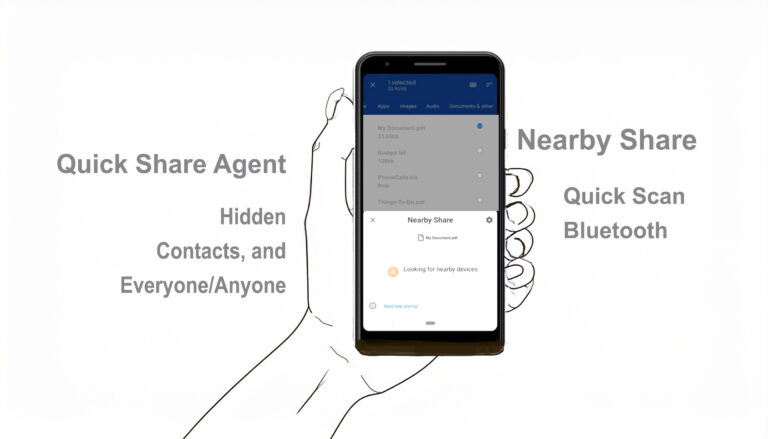

Which APPS Have Access to Your Data?
Did you know that newer and updated computer operating systems, computer and phone browsers, newer cell phones, and other smart appliances — televisions, watches, vacuums, security cameras, etc., are sold pre-loaded with applications that are collecting, sharing, and selling your personal activities and information? Yes, unfortunately it is true. In other words ALL of your personal information is being sold to data brokers, UNLESS YOU TURN-OFF these settings.
Can you check the Permissions You Are Allowing?
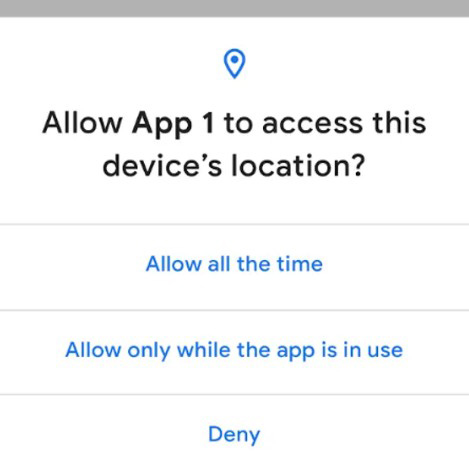
Yes, you can.
But, since Android phones and many non-Apple computers are are manufactured by several companies, your device settings will be checked in different ways. iPhones and Mac computers are all made by the same company (Apple) but have different operating versions. After researching where these settings can be found on more than 20 different Androids and iPhones, and with various app versions, I found they all have similar names, but can be found in different locations on the devices.
Where the settings can be found, depends upon the software versions, and especially newer phones and computers. So, you may need to do a little bit of digging to find the exact location of Apps on your device. However, to make an informed decision, we encourage you to take a little time to check your device or browser “Settings”, “Privacy”, and/or “Security” applications. See how to do this below:
One way to check:
- In your device Search Bar, search for the terms: “Settings” or “Privacy and Security” on your device or in your browser, if wanting to check browser settings and privacy.
- 1) The Privacy Policy explains it all – each device, application, and browser, by law, must outline what is being collecting, shared (sold), and used by the device, or browser. You can turn ON or OFF this bleeding of our private information under “Settings” and/or “Privacy”.
- 2) The device “Settings” tab can provide detailed information about which Apps have access and you can easily turn OFF or ON these settings by toggling the switch. If you can’t find it, just Search the term “Settings” in your device’s Search bar or bubble.
- 3) Once you see the various App settings, you can decide which Tracking you want to allow — keep turned ON or turn OFF.
Another way to check:
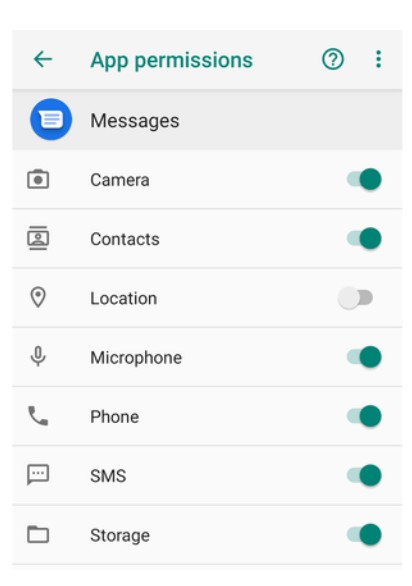
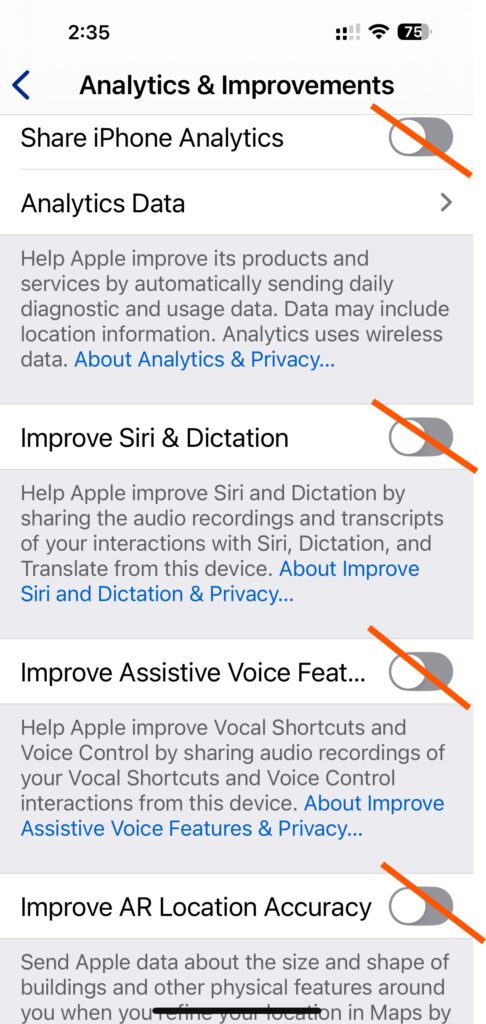
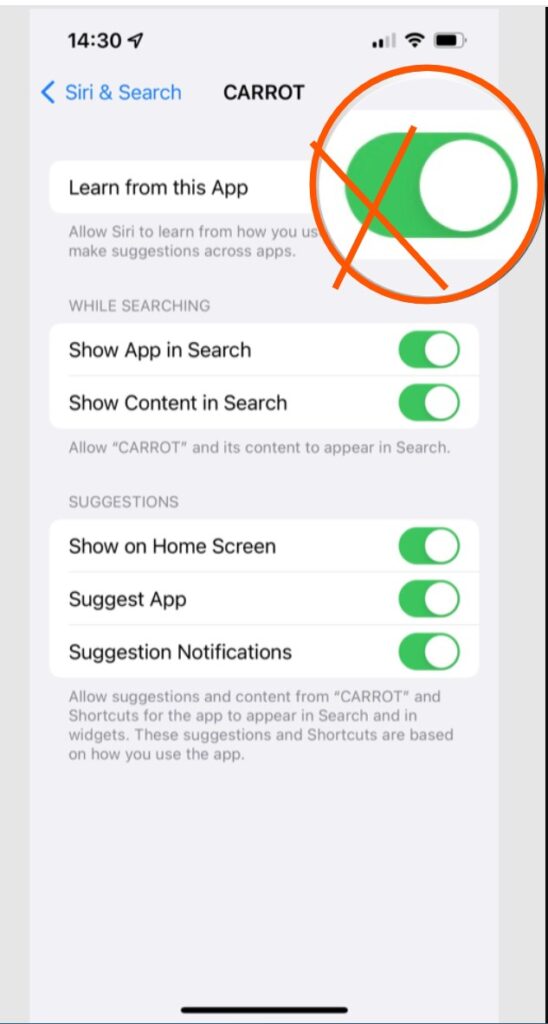
- Instead of Searching, you can Open your “Settings” app from your Home Page (phone, computer, etc.), then,
- Choose the Privacy and Security tab on your device (or browser).
- Look through the various settings to understand which apps are tracking you. Again, take a look at the device’s Privacy Policy, which outlines what is being collecting, shared (sold), and used by the device (or browser).
- Once you see the various App Permissions, you can decide which apps are unnecessarily Tracking you and whether you want to keep them turned ON or turn them OFF.
Yet, another way to check:
- You can check individual tracking and access for Apps, browsers, smart devices, and anything that is connected through the Internet, Bluetooth, or other means.
- You can either Search directly for the App (like Location, Camera, Microphone) to see all of the Apps that have access, or click on the Browser App (like Safari or Chrome) in the Settings tab, usually under APPS or APPLICATIONS or on the desktop or Home screen of your device. Steps to try are below:
- To find your APPS, Try opening your SETTINGS tab. (or Search for “Settings”)
- Then, choose the APPS tab (or APPLICATIONS tab, or INSTALLED APPLICATIONS tab). Some devices have different names for the same menu item. They all represent the same settings which could have access to your camera, microphone, health, location, photo gallery, front-facing camera, and other apps.
- You should find a list of all the (viewable) applications (APPS) stored on your device.
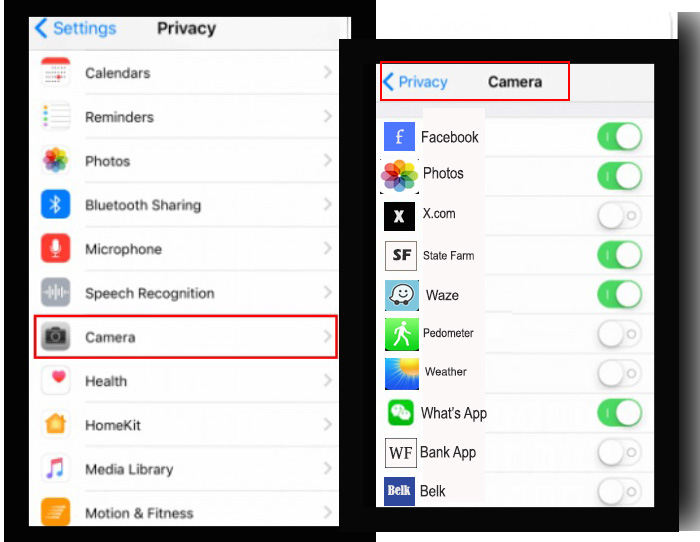
- You can check each application individually to see if it has access to your camera, microphone, health, location, photo gallery, front-facing camera, and other apps. In other words ALL of your personal information. Once you see the various App settings, you can decide which Tracking you want to keep ON or turn OFF. This type of surveillance is a choice. It is up to you to decide.
- See below which questions to verify while turning ON or OFF an application.
WHAT QUESTIONS TO ASK YOURSELF WHEN YOU TURN-ON AND TURN-OFF APPLICATION ACCESS:

- Does this APP or Browser REALLY need Access to work properly?
- EXAMPLE: Does a grocery store, retail outlet, or restaurant really need access to your contacts, photos, videos, documents, screenshots, location, health activity, and front-or-back-facing cameras? If not, turn it OFF! This type of surveillance is a choice. It is up to you to decide.
- EXAMPLE: If you are using “talk-to-text” VOICE or AI-VOICE-DRIVEN APPS, you will need to keep your microphone “ON” for those apps that connect to the MESSAGE APP. In other words, if you talk into into your VOICE-DRIVEN MESSAGE APP (Like Siri, Gemini, or other) instead of typing, and you can’t live without this feature, make sure to give access to the specific apps that need to be connected so it works properly, like your Microphone and Contacts. Your microphone needs access to your VOICE–DRIVEN MESSAGE APP since it is monitoring your verbal cues and interactions.
- If you send Map directions via the MESSAGE APP, it will need access to the MAP APP and possibly the LOCATION App will need to be turned ON if you want to share your current location, as well as your Contacts.
- If you send Photos and Videos via the MESSAGE APP, it will need access to your PHOTOS gallery, as well as your Contacts.
- I think you see the point. Otherwise turn OFF all the access that is not required for you to use your phone. The changes will not affect your ability to use your phone, unless you turn off Cellular Data or a similar setting that is required to use your phone. If you do turn off a required App accidentally, its not a problem. Just go back and TURN IT ON again.
- EXAMPLE: If you take a photo of your payroll check and upload it through your Bank App (a Credit Union or Chase Bank or Capital One, etc.) via your camera (and you can’t live without this feature) click ON access to your camera and photos for your Bank App.
- Then check the other permissions associated with the Bank App and ask yourself, “Does the bank/credit union need to know my list of CONTACTS? or my LOCATION? for this app to run correctly?” ABSOLUTELY NOT! But, again, this is your choice. The change will not affect your ability to use your phone or the bank App. If it does, you may consider another bank.
- Then check the other permissions associated with the Bank App and ask yourself, “Does the bank/credit union need to know my list of CONTACTS? or my LOCATION? for this app to run correctly?” ABSOLUTELY NOT! But, again, this is your choice. The change will not affect your ability to use your phone or the bank App. If it does, you may consider another bank.
- EXAMPLE: If you like to text photos and videos to friends and family via MESSAGES (SMS) then you will need to give the MESSAGES App access to both Contacts and Photos. But, as stated above, it does not need to know your LOCATION, or HEALTH statistics, right?
- EXAMPLE: If you are playing GAMES on your device, ask yourself, “Does this game need access to my location? microphone? contact list? photos? etc. The answer is most likely NO!
- EXAMPLE: Does your INSURANCE APP need access to your LOCATION and HEALTH (movement) so they can track your driving habits and, for this information, give a discount? YES.
- But ask yourself, “Does this Insurance App need access to my PHOTOS? MICROPHONE? CAMERA? CONTACTS? Hmmm…. Not for the app to work. However, they may require this tracking information to get the discount. Ask your agent.
- And another question to ask yourself for this INSURANCE APP…. Is it really worth the small discount they are offering to allow them to track my Location: driving habits; Health: awake and sleep habits, movement; and my Location: exact location, every day, 24/7? Do they sell my collected information? Ask your agent. This surveillance is a choice. It is up to you to decide.
- Do APPS sell my information for profit, without my knowledge? Check the Privacy Policy first, then decide if you WANT THE APP to have this information. If not, TURN-IT-OFF, BLOCK-IT, OR DELETE THE APP. You have lived a long time without giving out all of your personal information. Why start now?
- EXAMPLE: Does a grocery store, retail outlet, or restaurant really need access to your contacts, photos, videos, documents, screenshots, location, health activity, and front-or-back-facing cameras? If not, turn it OFF! This type of surveillance is a choice. It is up to you to decide.
- If you are not sure which Apps need access to other Apps to function properly, just Google it to see which access/permission is required to run that specific App. If the access or permissions showing available to the downloaded app is not required, just TURN-OFF the access or permissions (ON/OFF button usually shown next to the App). You can always go back later and TURN-ON again, if you change your mind.
Remember, there is no “right” vs “wrong” answer here. It is a matter of choice! If you are willing to allow Apps to track you, share information between Apps and the manufacturer or App creator, then turn the access (ON). If not, turn the access permissions (OFF). These settings are allowed for your contact list, photos, videos, documents, screenshots, location, health activity, and front-or-back-facing cameras, etc. and you are making a conscious decision to allow tracking, when you give access (ON). - Do smart cell phones and smart televisions come pre-loaded with APPS that have FORCED access (Turned-ON) to your private information when you buy a new device? ABSOLUTELY! Should we accept this practice? Well, it depends upon how much you enjoy your freedom and privacy.
- Is it OK (legal) for device and software manufactures to have pre-loaded APPS with FORCED PERMISSIONS or ACCESS (Is automatically turned ON) inside the new devices? If our Constitution means ANYTHING, NO!
- Will there be enough people to demand changes to this evasive practice?
Only YOU have that answer.